
Introduction
If your IPTV Smarters Pro EPG is not working, showing “No Information,” displaying outdated programs, or missing guide data for certain channels, the problem can come from several different sources.
In many cases, you don’t need to reinstall everything. A simple EPG refresh, cache cleanup, or configuration check can solve the issue.
In this guide, we’ll go through 7 practical fixes for IPTV Smarters Pro EPG problems in 2026, starting with the easiest solutions.
Why Is EPG Not Working on IPTV Smarters Pro?
EPG (Electronic Program Guide) provides the program names, schedules, and timing information displayed next to your channels.
If the guide stops working, common causes include:
- The EPG data hasn’t refreshed correctly.
- Cached data inside IPTV Smarters Pro is outdated or corrupted.
- The EPG source or account information is incorrect.
- Your device or app needs to be restarted or updated.
- The timezone or EPG offset is incorrect.
- EPG information is unavailable for specific channels.
- The issue is coming from the service provider rather than IPTV Smarters Pro itself.
Before changing your login details or reinstalling the app, start with a manual EPG refresh. It’s one of the quickest things to check and may solve the problem without affecting your existing setup.
1. Check Whether Your Version Has an EPG Refresh Option
IPTV Smarters Pro can look different depending on the device and app version you are using. Some versions include dedicated EPG update controls, while others may not show an EPG option in the Settings menu at all.
If your version includes an EPG refresh or update option, run it and allow the guide data to finish loading before checking Live TV again.
If you do not see an EPG option, don’t worry. Avoid changing unrelated settings or repeatedly reinstalling the app. Continue with the troubleshooting steps below to determine whether the issue is related to cached data, your playlist configuration, or the EPG source itself.
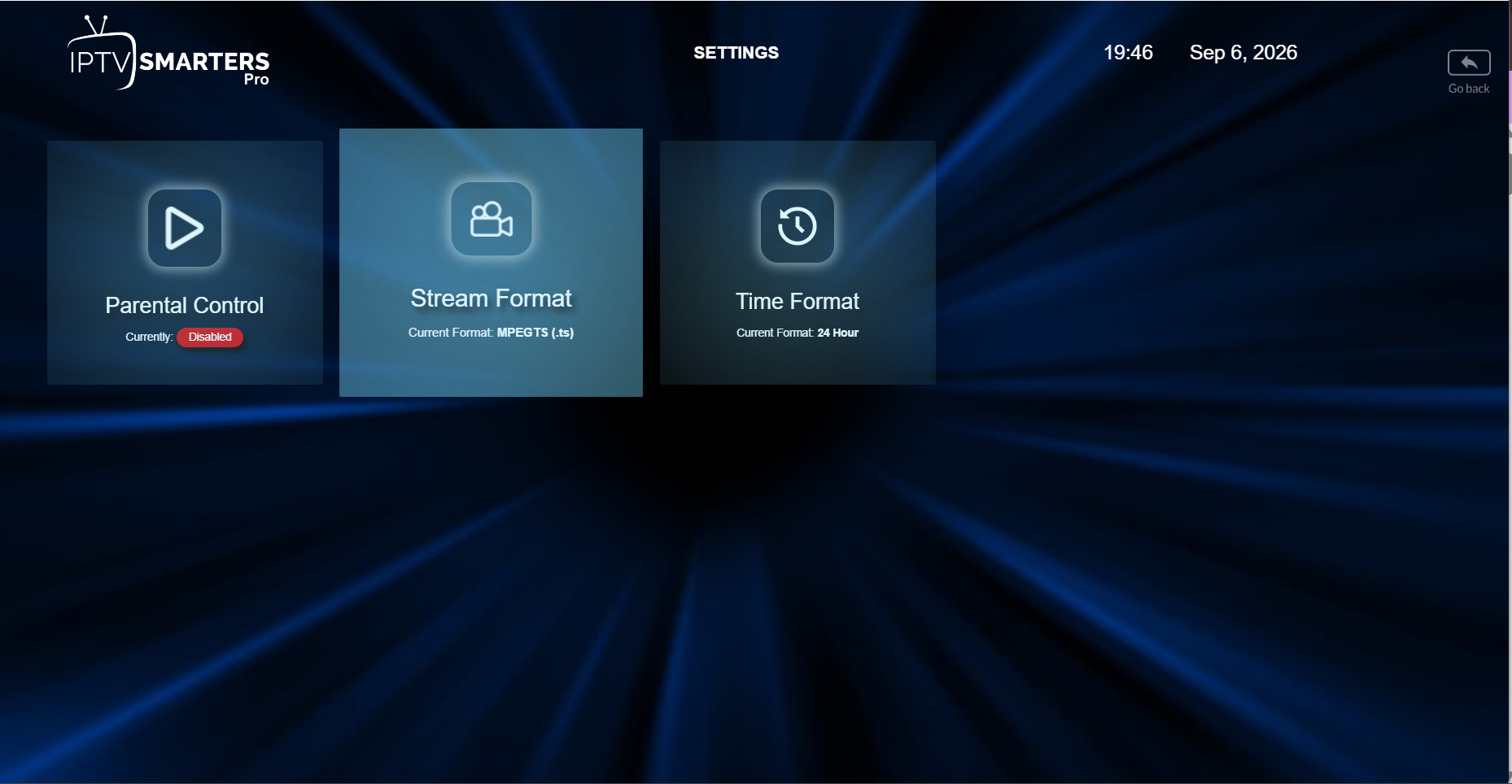
Note: The screenshots in this guide show a version of IPTV Smarters Pro where the Settings menu contains Parental Control, Stream Format, and Time Format, but no dedicated EPG refresh option.
2. Restart IPTV Smarters Pro and Your Device
If refreshing the EPG didn’t work, restart the app before changing any settings.
- Close IPTV Smarters Pro completely.
- Make sure the app is no longer running in the background.
- Restart your Firestick, Android TV, phone, or other device.
- Open IPTV Smarters Pro again.
- Wait a moment for your account and EPG data to load.
- Open Live TV and check the program guide.
A restart can clear temporary app or device issues that prevent EPG data from loading correctly.
Channels Work but EPG Doesn’t?
If your live channels play normally but the guide still shows “No Information,” your internet connection is probably not the first thing to troubleshoot.
The next step is to clear IPTV Smarters Pro’s cached data without unnecessarily deleting your account configuration.
3. Clear the IPTV Smarters Pro Cache
Corrupted or outdated cached data can prevent the EPG from loading correctly. Clearing the cache is different from clearing app data: the goal is to remove temporary files without deleting your login information.
On Firestick / Fire TV
- Open Settings on your Fire TV.
- Select Applications.
- Choose Manage Installed Applications.
- Find and select IPTV Smarters Pro.
- Select Clear Cache.
- Open IPTV Smarters Pro again.
- Refresh the EPG and check the TV guide.
Important: Avoid selecting Clear Data unless necessary. Clearing app data can remove your saved accounts and settings.
On Android TV
- Open your device Settings.
- Go to Apps.
- Select IPTV Smarters Pro.
- Choose Storage & Cache or a similar option, depending on your device.
- Select Clear Cache.
- Restart IPTV Smarters Pro.
- Refresh the EPG and check whether the guide information appears.
Menu names can vary slightly depending on your Android TV device and operating-system version.
Still No EPG After Clearing the Cache?
If channels are playing normally but the EPG remains completely blank after a refresh, restart, and cache cleanup, the problem may be related to the EPG source or account configuration rather than your device.
Before reinstalling the entire app, check that next.
4. Check Your EPG Source or Login Details
If refreshing the guide and clearing the cache didn’t work, the problem may be related to the information IPTV Smarters Pro uses to retrieve EPG data.
How this works depends on how your playlist was added.
If You Use Xtream Codes API
When you sign in using a username, password, and server URL, IPTV Smarters Pro normally retrieves channel and EPG information from the service automatically.
Check that:
- Your username and password are correct.
- The server URL hasn’t changed.
- Your subscription is still active.
- The account loads correctly without login errors.
If live channels work but only some channels have missing EPG information, avoid deleting and re-adding the account immediately. The missing guide data may be coming from the EPG source itself.
If You Use an M3U Playlist
An M3U playlist provides channel information, but EPG data may depend on a separate XMLTV/EPG URL.
If your setup uses a separate EPG source, make sure the URL:
- Has been entered correctly.
- Is still active.
- Contains no missing characters or accidental spaces.
- Is the EPG source intended for your playlist.
A broken or outdated EPG URL can leave the channels working while the program guide remains empty.
If You Use XMLTV
XMLTV is a common format used to deliver electronic program guide data.
If the XMLTV source cannot be downloaded or doesn’t correctly match the channels in your playlist, IPTV Smarters Pro may display “No Information” even though live TV continues to work.
If your login or EPG information was supplied by your service provider and you’re unsure whether it has changed, contact them before modifying the configuration.
Don’t Delete a Working Playlist Too Quickly
If your channels are already working, avoid deleting the entire playlist as your first solution.
First confirm whether the problem affects:
- Every channel.
- Only one country or category.
- Only a few specific channels.
This distinction is useful because EPG missing on only certain channels is often a different problem from having no EPG anywhere.
5. Fix EPG Showing the Wrong Time
Sometimes the EPG loads correctly, but the program times don’t match what’s actually playing. For example, the guide may appear one or two hours ahead or behind.
This is usually related to a timezone or EPG time-offset setting rather than missing guide data.
Check Your Device Time and Timezone
First, make sure your device is using the correct:
- Date and time.
- Timezone.
- Automatic time settings, if available.
After correcting the device time, restart IPTV Smarters Pro and check the guide again.
Check the EPG Time Shift
Depending on the version of IPTV Smarters Pro you’re using, an EPG Time Shift or similar setting may be available.
If the guide is consistently ahead or behind:
- Open Settings in IPTV Smarters Pro.
- Look for the EPG or time-related settings.
- Check whether an EPG time shift has been applied.
- Adjust or reset the offset if necessary.
- Refresh the EPG and check the guide again.
Avoid changing the offset randomly. If every program is exactly one hour early, for example, test a corresponding one-hour correction and verify the result.
Wrong Time on Only Some Channels?
If most channels show the correct schedule but only a few have incorrect times, your device timezone is less likely to be the cause.
The EPG data for those specific channels may be incorrect or mapped incorrectly at the source.
In that situation, changing the global time offset could fix those channels while making the rest of your guide incorrect.
6. Update or Reinstall IPTV Smarters Pro
If the EPG still isn’t working after refreshing it, restarting your device, clearing the cache, and checking your EPG source, make sure you’re using an up-to-date version of IPTV Smarters Pro.
An outdated or corrupted installation can sometimes cause guide data to load incorrectly.
Check for an App Update
If IPTV Smarters Pro was installed through an app store:
- Open your device’s app store.
- Search for IPTV Smarters Pro.
- Check whether an Update option is available.
- Install the update.
- Restart the app.
- Refresh the EPG and check the guide again.
Reinstall the App Only as a Last Resort
If updating doesn’t solve the problem, reinstalling the app may help with corrupted app files.
Before uninstalling IPTV Smarters Pro, save the information you’ll need to add your account again, such as your login credentials and server details.
Then:
- Uninstall IPTV Smarters Pro.
- Restart your device.
- Reinstall the app from a trusted source.
- Add your account or playlist again.
- Allow the initial data to load completely.
- Check whether the EPG is now working.
Important: Reinstalling the app won’t fix missing EPG data if the problem is coming from the EPG source itself.
If the guide is still missing after a clean installation, it’s time to determine whether the issue is provider-side rather than device-side.
7. Check Whether the Problem Is Provider-Side
If you’ve tried the previous fixes and the EPG still isn’t working, the issue may not be caused by IPTV Smarters Pro or your device.
The EPG information displayed by the app depends on the guide data supplied by your service or EPG source. If that data is missing, outdated, or incorrectly mapped, changing settings inside the app may not solve the problem.
Signs the EPG Issue May Be Provider-Side
The problem is more likely to come from the EPG source when:
- Live channels work normally, but the EPG is missing.
- Only certain channels or categories show “No Information.”
- The same channels have missing EPG data on multiple devices.
- Refreshing the EPG doesn’t download updated information.
- Other channels display their schedules correctly.
- The guide suddenly stopped working without any changes to your device or app.
Test the Same Account on Another Device
If possible, add the same account to another compatible device or app.
If the same EPG information is missing there as well, this is a strong indication that the issue isn’t specific to your IPTV Smarters Pro installation.
Contact Your Service Provider
If you’ve confirmed that the problem appears to be source-side, contact your provider and explain exactly what’s missing.
Instead of simply saying “EPG isn’t working,” provide useful details such as:
- The affected channel names.
- The country or channel category.
- Whether the EPG is completely blank or outdated.
- Whether live channels are still working.
- The device and app you’re using.
This information can make it easier to identify and correct the EPG source.
Don’t Keep Reinstalling the App
If the same channels have missing EPG information across different devices, repeatedly reinstalling IPTV Smarters Pro is unlikely to help.
At that point, the EPG data itself needs to be checked.
IPTV Smarters Pro EPG Still Not Working?
If you’ve tried all seven fixes, use this quick table to identify the most likely cause before changing more settings.
| Problem | Most Likely Cause | What to Try |
|---|---|---|
| No EPG on any channel | EPG source or loading issue | Refresh EPG and verify the source |
| “No Information” on some channels | Missing provider-side EPG data | Check the affected channels with your provider |
| EPG is one or two hours wrong | Timezone or EPG offset | Check device time and EPG time shift |
| Guide shows old programs | EPG hasn’t updated | Refresh EPG and clear the app cache |
| EPG works on one device but not another | Device or app issue | Clear cache, update the app, or reinstall |
| Same EPG problem on multiple devices | Source-side issue | Contact your service provider |
The key is to identify whether the problem affects the entire guide, specific channels, or only one device. This can save you from unnecessarily reinstalling the app or changing a configuration that was already correct.
Frequently Asked Questions
How do I refresh EPG on IPTV Smarters Pro?
Open IPTV Smarters Pro and check the app settings for the EPG refresh or update option. Run the update and allow it to finish before reopening the TV guide.
The exact menu names may vary depending on the app version and device.
Why does IPTV Smarters Pro say “No Information”?
“No Information” usually means the app doesn’t currently have usable guide data for that channel.
This can happen because the EPG hasn’t refreshed, the source is unavailable, the channel isn’t correctly mapped to its guide data, or your provider doesn’t currently have EPG information for that channel.
How long does EPG take to update?
There is no single update time for every setup. It depends on the device, connection, app version, and amount of EPG data being downloaded.
Normally, allow the refresh to finish completely before deciding that it has failed.
Why is EPG working on some channels but not others?
If most channels display guide information correctly but a small number don’t, the app itself is less likely to be the problem.
Those channels may have missing or incorrectly mapped EPG data at the source. In this situation, contact your service provider with the names of the affected channels.
Final Thoughts
When IPTV Smarters Pro EPG is not working, start with the simplest fixes: refresh the guide, restart the app and device, and clear the cache.
If that doesn’t help, check your EPG source, timezone settings, and app version.
Most importantly, determine whether the issue affects all channels or only specific ones. If the same channels are missing guide information across multiple devices, the problem is likely related to the EPG source rather than your device.
Looking for a Reliable Streaming Experience?
Test Streamiro on your device before choosing a plan.